
This guide helps you choose, purchase, and set up a smart home device bundle for tasks such as controlling lights, checking a door, or adjusting a thermostat. It is for first-time buyers and anyone adding several connected devices at once. You will finish with compatible devices connected to your home network, named clearly, and tested together. Allow 1-3 hours for planning and setup; installation time varies by device and home.

Get the latest gadgets delivered free with Prime
- Fast, free delivery on millions of items
- Prime Video, Amazon Music and more included
- Member-only deals all year

Ring Alarm 14-Piece Kit
- ✔ Included devices: Base station, 2 keypads, 8 contact sensors, 2 motion detectors, 1 range extender
- ✔ Primary use: Home or business alarm system
- ✔ Security modes: Disarmed, Away, and Home
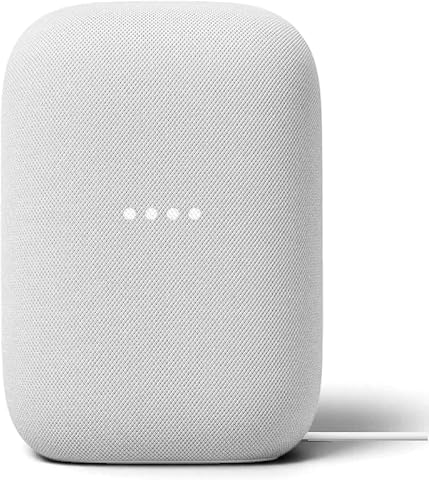
Google Nest Audio 3-Pack Smart Speakers
- ✔ Included devices: 3 Nest Audio smart speakers
- ✔ Assistant: Google Assistant built in
- ✔ Connectivity: Wi-Fi and Bluetooth 5.0

Smart Home Starter Kit with Echo Hub, Amazon Smart Plug, and 4 Amazon Basics Smart Bulbs
- ✔ Included devices: Echo Hub, Amazon Smart Plug, and 4 Amazon Basics smart bulbs
- ✔ Hub display: 8-inch touchscreen, 1280 × 800 resolution
- ✔ Hub dimensions: 7.9 × 5.4 × 0.6 in
Difficulty: Beginner | Time: 1-3 hours, plus delivery time
What You’ll Need
Tools & Materials:
- A smartphone or tablet with the current version of the bundle’s companion app
- A stable home Wi-Fi network and its network name and password
- A list of rooms and tasks you want the devices to cover
- A tape measure if the bundle includes cameras, sensors, or devices with placement limits
- A screwdriver or other basic tool if a device’s instructions call for one
Knowledge:
- Basic ability to install apps and connect a phone to Wi-Fi
- Access to your router settings or help from the person who manages your network
- Basic familiarity with the rooms, outlets, switches, and doorways where you plan to install devices
Check the time estimate for any hub, camera, or thermostat installation in the manufacturer’s instructions. A thermostat may require wiring work or professional help. Do not remove or alter wiring unless the device instructions and your qualifications permit it. If you rent, check before installing anything that requires drilling or changes to wiring.
Ring Alarm 14-Piece Kit
For households whose first smart home goal is knowing when doors or windows open, Ring Alarm 14-Piece Kit is the most purpose-built bundle here. Eight contact sensors give it more entry-point coverage than the other picks can offer, while two motion detectors and two keypads help support a larger home and more than one convenient arming location. A base station coordinates the system, and the range extender can help connect devices across the home. That makes this package a better starting point for a two-to-four-bedroom home than the Nest speaker bundle or Amazon’s lighting-and-control kit.The tradeoff is that security capabilities are not all included as standalone functions. Professional monitoring requires a compatible Ring subscription, and other connected features—including remote arming and cellular backup—also have subscription conditions. Buyers should confirm regional availability and any local permit requirements before relying on monitoring. Ring is expandable with additional sensors and compatible devices, but those are separate purchases, so this kit’s coverage may need to grow along with the home.Compared with Amazon’s Echo Hub kit, Ring delivers a more complete package for intrusion detection but offers no touchscreen hub for managing a broader collection of household devices. Compared with Nest Audio, it is much more focused on alerts than daily voice interaction or music. We rank it first because it provides the clearest complete bundle for a high-priority smart home need: covering multiple entry points with a coordinated alarm system. Skip it if you are seeking general automation and do not want an alarm-centered setup or subscription-dependent services.
Pros:
- Eight contact sensors provide broad door and window coverage.
- Two motion detectors and two keypads suit a multi-room layout.
- Base station and range extender are included for a coordinated system.
- Expandable with additional Ring Alarm sensors and accessories.
Cons:
- Professional monitoring requires a compatible Ring subscription and has regional limits.
- Some remote arming and backup features also depend on a subscription.
- Additional sensors and accessories are sold separately.
Best for: Households in a two-to-four-bedroom home that want a bundled alarm with multiple entry sensors, motion detectors, and keypads.
Not ideal for: Buyers seeking a general-purpose smart home controller, or anyone who wants professional monitoring without a compatible subscription.
Bottom line: Choose Ring when security coverage is the main reason for buying a bundle and its subscription requirements fit your plans.
“Choose Ring when security coverage is the main reason for buying a bundle and its subscription requirements fit your plans.”
Google Nest Audio 3-Pack Smart Speakers
When a buyer says “smart home bundle” but primarily wants music, timers, and voice access in several rooms, the Google Nest Audio 3-Pack is the most cohesive match. Three speakers can be spread across rooms for grouped playback, or two can be paired for stereo sound while the third serves another area. That flexibility is more useful for whole-home audio than either Ring’s alarm sensors or the Amazon kit’s single control screen and four bulbs.Each speaker combines Wi-Fi and Bluetooth streaming with Google Assistant, so the bundle can extend voice requests—such as setting timers or controlling compatible smart home devices—beyond one central room. The speakers are freestanding and corded, however, and the listing specifies that they are not waterproof. They make more sense on stable indoor surfaces than in bathrooms, outdoor spaces, or anywhere a cable would be inconvenient. This package also does not include smart plugs, bulbs, or security sensors, so buyers wanting hands-on automation hardware will need to add compatible devices.Compared with Amazon’s Echo Hub kit, Nest Audio gives us three audio endpoints instead of one touchscreen control point; Amazon is more useful for visual control and its included lighting starter set. Compared with Ring, Nest Audio supports daily assistant and audio routines rather than alerting us to entry points. We give it the multi-room role because the three-speaker format is its distinct advantage. Choose it if sound and Google Assistant access matter most, and skip it if the main goal is alarm protection or a bundle that includes lights and plugs.
Pros:
- Three speakers support playback across multiple rooms.
- Two speakers can be paired for stereo while the third serves another space.
- Google Assistant can handle voice requests and control compatible smart devices.
- Supports Wi-Fi and Bluetooth streaming.
Cons:
- No security sensors, smart bulbs, or plug are included.
- Speakers are corded and not waterproof.
- Its smart home usefulness depends on compatible devices and the Google ecosystem.
Best for: Google-oriented households that want voice assistant access and synchronized audio in three indoor rooms.
Not ideal for: Buyers who need an alarm system, included smart lighting, weather-resistant speakers, or a visual control panel.
Bottom line: Pick the Nest Audio bundle when multi-room sound and Google Assistant access matter more than bundled sensors or lighting.
“Pick the Nest Audio bundle when multi-room sound and Google Assistant access matter more than bundled sensors or lighting.”
Smart Home Starter Kit with Echo Hub, Amazon Smart Plug, and 4 Amazon Basics Smart Bulbs
The Amazon Smart Home Starter Kit combines an Echo Hub touchscreen with a plug and four color-changing bulbs, giving Alexa newcomers a visible control point and a small set of devices to manage. The Hub can coordinate a broad range of compatible smart home products, including Wi-Fi, Bluetooth Low Energy Mesh, Zigbee, Thread, and Matter devices as a controller. That flexibility makes this bundle a more expandable control starting point than the Nest Audio package, whose included devices are all speakers.Its included accessories are more limited than the Hub’s broad compatibility suggests. The Amazon Smart Plug and smart bulbs work with Alexa only, and both use 2.4 GHz Wi-Fi; the plug does not work with other voice assistants or smart hubs. Four bulbs are enough to begin creating lighting routines or make rooms appear occupied, but this is not a multi-room speaker package or a security kit. The Echo Hub itself needs internet access and is intended for wall mounting or stationary use, with a stand sold separately.Against Ring, Amazon gives us a touchscreen and starter lighting controls but lacks Ring’s included alarm sensors and keypads. Against Nest Audio, it has a central screen and bundled devices for automation, while Nest offers better coverage for music across rooms. We rank this third because the bundle’s three components support an accessible Alexa start but leave the buyer tied to Alexa for its included plug and bulbs. It fits best when visual control and Alexa routines are the priority; skip it if you need broader voice-assistant compatibility or alarm monitoring.
Pros:
- Echo Hub provides an 8-inch touchscreen for controlling compatible devices.
- Includes four dimmable, color-changing smart bulbs and one smart plug.
- Hub supports several smart home connectivity standards, including Zigbee, Thread, and Matter as a controller.
- The Hub can be wall-mounted and includes mounting hardware.
Cons:
- Included plug and bulbs are Alexa-only.
- The plug and bulbs use 2.4 GHz Wi-Fi and do not support 5 GHz networks.
- Echo Hub requires internet and is not designed for portable use.
Best for: Alexa users who want a wall-mounted control screen and a few included devices to start lighting and plug routines.
Not ideal for: Households committed to Google Assistant, Apple HomeKit, or another assistant for their included bulbs and plug, or buyers seeking bundled alarm coverage.
Bottom line: Choose this kit when you want a visual Alexa control point and starter lighting, and its Alexa-only accessories suit your home.
“Choose this kit when you want a visual Alexa control point and starter lighting, and its Alexa-only accessories suit your home.”
As an Amazon Associate we earn from qualifying purchases.
Before You Start
Decide what you want the bundle to do before comparing products. For example, you may want to turn off several lights with one voice command or receive an alert when a door opens. Make a short list of those tasks and the rooms involved. A larger bundle is not automatically a better fit if it includes devices you will not use.
Check whether the bundle needs a hub, which voice assistant or smart home platform it supports, and what Wi-Fi bands or other network requirements it has. Read the device and app requirements for your phone. Some equipment needs a 2.4 GHz Wi-Fi network, a compatible hub, or a subscription for certain features. Confirm what is included in the box and whether batteries, mounting hardware, or a subscription are sold separately.
Keep the router password and any account login details available. Choose a strong, unique password for the smart home account, and enable two-factor authentication if the service offers it. Avoid sharing account credentials among household members; use the app’s household or guest access features when available.
Step-by-Step Instructions
Step 1: List the tasks and rooms
Write down three to five tasks you want the bundle to handle. Be specific: “turn on the entry light when I arrive” is easier to plan for than “make the house smarter.” Beside each task, note the room and the device type it calls for, such as a bulb, plug, contact sensor, camera, or thermostat.
Mark which tasks are essential and which are optional. If you mainly need lighting control, prioritize compatible lights or smart switches. If you want entry alerts, look for a door sensor or camera and check whether the bundle includes one. This list gives you a practical way to compare bundles and reduces the chance of paying for equipment that will sit unused.
Tip: Include everyone who will use the system. Household members may need individual app access, voice access, or different notification settings.
Check: You have a short list of tasks, their rooms, and the device types needed for each.
Step 2: Check compatibility and coverage
Compare your list with the manufacturer’s product page and the bundle’s packaging. Confirm that each device works with your chosen app or smart home platform, your phone, and your network. Check whether devices connect directly to Wi-Fi or need a hub, and whether the hub is included. If you plan to use voice control, verify that the bundle supports the voice assistant you already use.
Look at the wireless range listed for any hub or sensor. A hub in a distant room or behind a thick wall may not reach every device. If the product uses a mesh network or other bridge, confirm where it should be placed and whether the bundle includes everything needed. Check subscription terms for video storage, advanced alerts, or other features you expect to use.
Tip: Read the requirements for each device, not just the bundle’s headline compatibility claim. One device in a set may have different network or hub requirements.
Check: You can identify the app, network, hub, voice assistant, and any paid service each planned device requires.
Step 3: Compare bundles and choose one
Compare two or three bundles against your task list. Count how many essential tasks each one covers, whether it leaves you with devices you do not need, and whether you can add compatible devices later. Check the total cost, including a hub, batteries, mounting parts, and any recurring subscription. Read the return period and warranty details before ordering.
Choose the smallest bundle that covers your essential tasks and can expand in a way that matches your plans. Record the exact model names of the devices. That information helps you check requirements later, ask for support, or buy compatible additions.
Tip: Treat a bundle discount as one factor. A low price does not help if the devices cannot connect to your network or platform.
Check: You have selected a bundle that covers your essential tasks, and you know its total cost and ongoing fees.
Step 4: Prepare the app, account, and network
Install the official companion app from your phone’s app store. Create an account or sign in, then review its privacy and notification settings. Use a unique password and enable two-factor authentication if it is available. If other household members need access, invite them through the app after the primary setup rather than giving them your password.
Check that your phone is connected to the home Wi-Fi network the devices will use. If the app asks for Bluetooth or location access during pairing, grant only the permissions needed for setup and the features you intend to use. If the instructions say to use a 2.4 GHz network, confirm that your router provides one. Keep the phone close to the router and devices during initial setup.
Tip: Some routers combine 2.4 GHz and 5 GHz under one network name. If pairing fails, consult the router or device instructions for the recommended network setup.
Check: You can sign into the app on your phone, and you know which Wi-Fi network the devices should join.
Step 5: Unpack and place the devices
Open the package and compare its contents with the included list. Keep each device’s model label, setup card, and instructions until setup is complete. Charge devices or install the supplied batteries as directed. Before attaching anything, place devices in their intended rooms and confirm that you have enough outlets, mounting space, and wireless coverage.
For cameras and sensors, choose positions that serve their purpose without pointing into areas where household members or neighbors expect privacy. For bulbs and plugs, check that the light fixture, outlet, and physical controls are suitable. Test the connection from each intended location before permanently mounting devices. Keep cords clear of walkways and follow the product’s temperature and moisture limits.
Tip: Do not mount a camera or sensor until you have confirmed its live view or connection from the planned location.
Check: All expected items are present, powered as directed, and positioned where they can serve their planned tasks.
Step 6: Connect the hub and pair each device
If the bundle includes a hub, connect it first and follow the app’s instructions to add it to your account and network. Place it in an open central location, away from thick walls, metal cabinets, and other equipment that may interfere with its signal. Wait for the app to report that the hub is online.
Add devices one at a time using the app’s add-device or setup option. Scan a setup code if requested, then follow the prompts for Wi-Fi, Bluetooth, or hub pairing. Give each device time to finish pairing before starting the next one. If the app asks you to reset a device, use the reset procedure in its instructions; a reset may remove its previous settings.
Tip: Keep devices powered and your phone near them during pairing. Avoid unplugging the hub while the app is updating or completing setup.
Check: The app lists the hub and each device as online or connected, with no unresolved setup prompts.
Step 7: Name devices and assign rooms
In the app, assign every device to the room where it is installed. Give it a short, distinct name that describes its function or location, such as “Hall lamp” or “Back door sensor.” Avoid giving several devices the same name; that can make voice commands and routines confusing.
Check that room names match the names people in your household actually use. If the app supports household access, invite the people who need to control the devices and explain which app or voice commands they can use. Set a device’s default state or brightness if the app offers that setting and it helps the device behave predictably.
Tip: Use names that are easy to say and hear. Test a voice command before renaming a device repeatedly.
Check: The app shows each device in the correct room, and you can tell devices apart by name.
Step 8: Create one routine and test the setup
Create one simple routine tied to an action you listed earlier. For example, set a chosen light to turn on at a scheduled time, or have a supported sensor trigger an alert. Select the correct devices, define the schedule or trigger, and review every action before saving. Start with a routine that is easy to observe and reverse.
Test each device manually from the app first. Then trigger the routine or wait for its scheduled time. Check that the intended devices respond, the alert reaches the right phone, and any voice command uses the correct room and device name. If a routine controls a lock, alarm, heater, or other device with safety or access effects, test it while present and read the device’s operating instructions before relying on automation.
Tip: A routine may depend on an internet connection, location permission, or a subscription. Check those requirements if it does not run as expected.
Check: Each device responds to a manual command, and your test routine performs the actions you configured.
Step 9: Review security and notifications
Open the account and device settings and review available security updates, two-factor authentication, sharing, and notification controls. Install firmware updates offered by the app while the devices have stable power and network access. Turn on only the alerts you need and select which household members receive them.
Review camera recording and privacy settings, including storage duration and sharing access. Remove access for people who no longer need it. Save the model names and support details somewhere accessible in case you need to replace a device or contact the manufacturer.
Tip: Keep the app and phone operating system current. Update timing and restart requirements vary by manufacturer.
Check: You know who can access the system, which alerts are active, and whether any device has an update pending.
Common Mistakes to Avoid
- Buying a bundle based only on its device count or discount. — Match each included device to a task and room first. Add the cost of a required hub, accessories, and subscriptions before comparing prices.
- Assuming every device works with the same app, network, or voice assistant. — Check the requirements for every model in the bundle, including Wi-Fi band, hub, phone operating system, and platform support.
- Mounting a device before checking its signal and view. — Test it from the planned location in the app first. Confirm wireless coverage and camera or sensor placement before drilling or attaching hardware.
- Using unclear device names or creating several routines at once. — Name devices by room and function, then add and test one routine at a time so you can identify what needs adjustment.
Troubleshooting
Problem: A device does not appear in the app during setup.
Solution: Confirm that the device has power and is in pairing mode according to its instructions. Move your phone closer, check that it is on the required Wi-Fi network, and try the app’s add-device flow again. Use the manufacturer’s reset steps only if the device remains undiscoverable.
Problem: The device pairs but shows as offline.
Solution: Check its power, Wi-Fi signal, and hub connection. Move the device or hub to a more open location, then refresh its status in the app. If your router recently changed network names or passwords, reconnect the device using the app’s network settings.
Problem: A sensor or camera does not reach the hub from its planned location.
Solution: Bring the hub closer or move it to a more central open area, then test the connection again. Check the device’s stated range and any placement guidance. Do not rely on an intermittent connection for an alert you depend on.
Problem: A routine or voice command controls the wrong device or does not run.
Solution: Check the device name, room assignment, trigger, schedule, and selected action in the app. Confirm that required permissions and services are active. Run a manual device command, then test the routine again while you can observe the result.
What Success Looks Like
Your bundle is set up when the app shows the hub and all intended devices as connected, each device has a clear name and correct room, and manual controls work from the locations where you will use them. Your test routine should trigger the selected actions, and alerts should reach the intended people. You should also know which account users have access, whether the bundle needs an ongoing subscription, and how to reach the manufacturer’s support information.
Next Steps
Use the system for several days and note any missed connections, confusing names, or alerts you do not need. Adjust device positions and notification settings based on what you observe. Add new devices only after checking that they work with your app, hub, network, and platform. Review account access and device updates periodically, especially after changing your router, phone, or household members.
If a device controls heating, entry, alarms, or another safety-related function, follow its manufacturer’s instructions and applicable local requirements. Contact the manufacturer or a qualified installer when wiring, persistent connection failures, or unclear safety instructions prevent a reliable setup.
Frequently Asked Questions
Do all devices in a smart home bundle use one app?
Not always. A bundle may include devices that use a manufacturer’s app, a shared smart home platform, or a separate app for certain features. Check the app requirements for each device before buying. Some platforms can bring devices together for control even when the manufacturer’s app is still needed for setup or updates.
Do I need a hub for a smart home bundle?
Only if the devices require one. Some devices connect directly to Wi-Fi, while others use a hub for pairing, control, or communication between devices. Check whether the hub is included and where it should be placed. A hub can also add cost and take up an outlet.
Can I set up the bundle if my Wi-Fi has one network name?
Often, but some devices need a 2.4 GHz connection and may not pair through a combined network name. Check the setup instructions and router settings. If pairing fails, follow the manufacturer’s guidance for separating or selecting the required band rather than changing router settings at random.
Should I buy a larger bundle to save money?
Choose a larger bundle only if you have a use for its extra devices and they fit your home. Compare the bundle price with the cost of the devices you will actually use, including any hub, accessories, and recurring fees. Unused devices add setup work without helping with your planned tasks.
What should I do if one device keeps disconnecting?
Check that it has stable power and a strong signal at its installed location. Try moving it or the hub to an open location and reconnect it through the app. If the problem continues, check for firmware updates and the manufacturer’s troubleshooting instructions. Contact support if the device remains unreliable after those checks.