
TL;DR

Get the latest gadgets delivered free with Prime
- Fast, free delivery on millions of items
- Prime Video, Amazon Music and more included
- Member-only deals all year
Smart home security cameras can send motion alerts, identify certain events, and save footage locally or in the cloud, but their usefulness depends on placement, power, Wi-Fi, and storage. Compare total costs and offline behavior, set privacy controls, and treat camera alerts as helpful information—not proof of an emergency or a replacement for locks and safe routines.
A camera can send you a crisp alert that someone is at the door—and still miss the package left beneath its lens. Placement, power, and recording settings often matter as much as the resolution printed on the box.
Smart home security cameras have moved from simple recording devices to connected systems that can detect events, send alerts, and work with other smart-home products. That can make a dark porch easier to check from your phone, but it also means you need to think about Wi-Fi, account security, storage costs, and who can view the footage.
This guide helps you match camera types to real spaces, compare recording and alert options, and set sensible privacy protections. You’ll also learn what to expect when the internet or power fails, so you can buy for the home you have—not for a feature list that looks good on a shelf.
Choose a camera type based on its location, power access, and whether you need continuous recording or event clips.
Compare subscription fees, local storage, and retention periods before counting the device price as the full cost.
Use motion zones and sensitivity settings to cut irrelevant alerts, then test them at night and during normal household activity.
Protect footage with a unique password, two-factor authentication, current software, limited sharing, and deliberate privacy zones.
Check offline behavior and start with the entrance or blind spot that matters most; cameras support security but do not replace locks, lighting, or safe routin…
Choose a camera that fits the place you need to watch
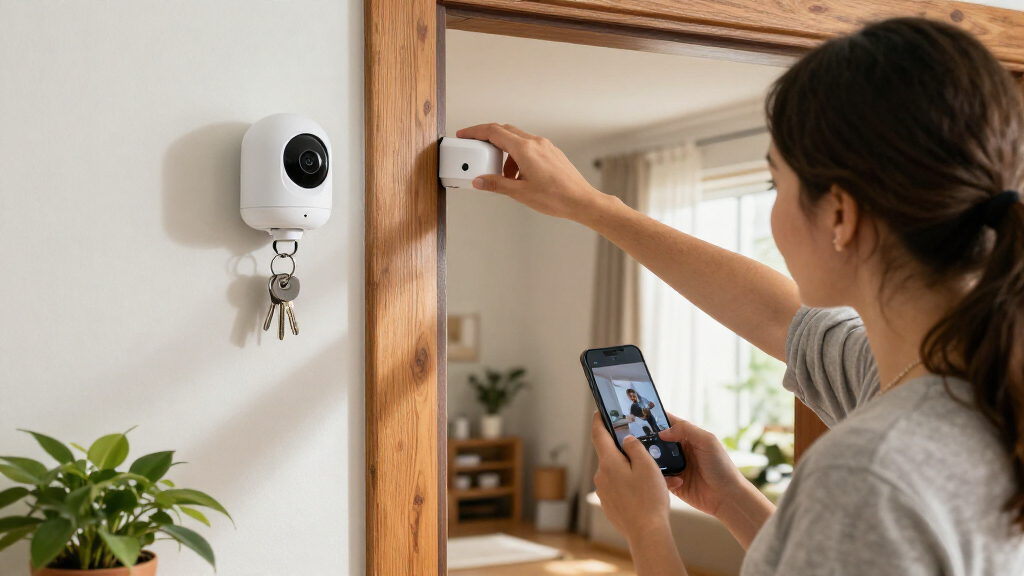
Smart home security cameras work best when their type matches the space: indoor models watch rooms and pets, outdoor models handle weather, and doorbell cameras focus on the front step. Wired cameras suit locations where dependable power matters, while battery models are easier to mount where cables would be awkward.
Think of camera placement like a flashlight beam. A broad beam helps you see a whole room, but a tighter beam makes it easier to spot details at a distance. A wide field of view may cover a driveway and gate at once, yet a face near the far edge can appear small. Mounting a camera too high can also capture the top of a hood instead of a clear face.
For example, a renter might use a battery camera near the front door because drilling into exterior walls is not allowed. A homeowner with an outlet by the garage may prefer a wired outdoor camera for steady power. Neither choice wins for every home: battery cameras need recharging, and wired models need a suitable power source and installation.
Before mounting anything, check the view in daylight and after dark. Look for glare from porch lights, branches that sway in wind, and areas where rain or snow could cloud the lens. Aim at your own entryway where possible, and avoid recording a neighbor’s windows or more of a public area than you need.
Popular right now

KitchenAid Artisan 5-Quart Tilt-Head Stand Mixer, Almond Cream
Roborock RockMow X130H Wire-Free 4WD Robot Lawn Mower

Breville Barista Express Espresso Machine with Built-In Grinder, Black Sesame
As an affiliate, we earn on qualifying purchases.
Compare power, recording, and storage before you pay
Camera costs include more than the device: power setup, cloud plans, local storage, and replacement batteries can all affect the long-term bill. Cloud storage makes clips easy to reach remotely, while local storage can keep recordings closer to home; each choice has trade-offs when a device is stolen or a service is unavailable.
Some cameras save short clips when motion triggers them. Others can record continuously, but that option depends on the model, power source, and plan. Continuous high-resolution footage uses far more storage than a few short event clips, so check how many days of history you actually get rather than assuming “video history” means weeks of footage.
Consider a family that wants to review a delivery after work. A cloud plan may make the clip easy to find from a phone, but the family should check whether the plan costs extra and how long the clip stays available. A memory card may avoid a monthly fee, but local footage could disappear with the camera if someone takes the device.
Compare the options side by side before buying:
| Option | What it helps with | Trade-off to check |
|---|---|---|
| Cloud storage | Remote access to saved clips | Possible subscription and provider account |
| Local storage | Less reliance on a cloud plan | Device theft or damage may take recordings with it |
| Battery power | Flexible placement without a nearby outlet | Recharging and possible event-only recording |
| Wired power | Steady power for frequent or continuous recording | Outlet, cable, or installation requirements |
Read the current plan terms for the exact model. Features, retention periods, and subscription rules change; a feature mentioned in a brand’s general advertising may not be included with every camera.
Get clearer footage and fewer pointless alerts
Useful footage depends on more than resolution: lens quality, sensor size, lighting, compression, viewing angle, and camera position all shape what you can see. Motion and AI-based alerts can sort some activity into categories, but they can still mistake shadows, weather, or passing movement for something worth your attention.
Imagine your camera faces a street where headlights sweep across the front window each evening. The result may be a phone buzzing with alerts even though nobody approaches your door. A motion zone can limit detection to the walkway, and a lower sensitivity setting may cut down alerts from distant traffic. Test those settings at the times when the problem occurs; a quiet afternoon test won’t reveal a nightly headlight issue.
Night vision also changes the picture. Infrared can show movement in a dark scene, while a visible spotlight may provide color detail but can startle a visitor or disturb a sleeping neighbor. A wide view is handy for broad coverage, but it may leave a person at the edge too small to identify. For a narrow gate, a tighter view can deliver more useful detail than a camera aimed across the whole garden.
AI detection can reduce routine notifications, and some systems process events on the camera or a local hub while others rely more on cloud services. That balance affects connectivity and privacy. Treat any alert as a prompt to check, not as a verified emergency response; a camera can report a person-shaped event without knowing what is happening.
Protect private footage without making security a chore
Protecting camera footage starts with limiting access, securing the account, and knowing where recordings go. Check whether the maker encrypts video in transit and at rest, offers two-factor authentication, explains who can access stored clips, and gives you a way to delete footage or disable recording.
A practical example: you install an indoor camera to check on a dog while you are away. When the household is home, a physical privacy shutter or a reliable off switch can prevent the camera from recording the living room. If the camera has no shutter, put its controls somewhere easy to reach and confirm in the app that recording actually stops.
Use a unique password for the camera account, turn on two-factor authentication when available, install app and firmware updates, and secure the home Wi-Fi network with a strong password. Share camera access only with people who need it, then remove access when it is no longer needed. These steps lower exposure, but no internet-connected camera is risk-free.
Audio deserves special care because recording conversations can raise legal and privacy concerns that vary by location. Check local rules before enabling microphone recording, especially if a camera can capture people outside your household. Aim privacy zones away from neighbors’ windows, and remember that a camera’s view can include more than the spot you intended to monitor.
Check what still works when Wi-Fi or power fails
Internet access usually powers remote viewing and phone alerts, but some cameras can continue saving footage locally when the connection drops. What survives an outage depends on the exact device, its power source, its storage setup, and whether a home hub or cellular backup is part of the system.
Picture a short broadband outage at 2 a.m. A battery-powered camera with local storage may keep recording, but you may not get a notification until service returns—or at all, depending on the model. A camera that depends on cloud recording may lose access to live video and new clips during the outage. If a power cut disables the router, even a camera with a battery may lose remote connectivity.
Check the manufacturer’s offline specifications before buying. Look for clear answers about local recording, access to saved clips, behavior after a restart, and whether a hub needs power. If your home has unreliable power, a supported battery backup for networking gear may help, but it adds cost and still does not replace a camera’s own power needs.
Compatibility matters here, too. A camera may work with a voice assistant or home hub for routines, but features can differ by model and platform. For example, a routine that turns on a porch light when the camera detects a person is useful only if the internet, compatible devices, and automation rules work as expected. Verify exact model support rather than relying on a brand name alone.
Set up a small system that solves a real problem
Start with one priority entrance, then add cameras only when another blind spot justifies the cost and extra footage. A camera is one part of home security, alongside good locks, lighting, and safe routines; it cannot prevent every incident or guarantee someone will respond to an alert.
Suppose packages keep disappearing from a porch. Instead of buying four cameras immediately, place one doorbell camera or outdoor model where it can see the delivery area and the approach. Check the Wi-Fi signal at the mounting point, test the view from a phone, and adjust the angle until a person and package are both visible. Then try it during daylight and after dark.
Use this short setup sequence to make the first camera useful before you expand:
- Name the problem: decide whether you need to see visitors, deliveries, a pet, or a side gate.
- Check the site: confirm power, Wi-Fi, lighting, weather exposure, and a view that respects others’ privacy.
- Compare the full cost: include a subscription, storage card, battery charging, or installation where relevant.
- Test alerts and recordings: walk through the detection area at different times and adjust zones and sensitivity.
- Secure the account: use a unique password, enable two-factor authentication, and review shared users.
After a week, ask whether the camera produced clips you could actually use and whether alerts were helpful rather than noisy. If it records a bright blur of street traffic but misses the doorstep, reposition it before buying another device.
Frequently Asked Questions
Do I need a subscription to use a smart security camera?
Not always. Some cameras offer live viewing and basic alerts without a monthly plan, while cloud history, advanced detection, or longer clip retention may cost extra. Check whether the model supports local storage if you want to avoid a subscription.
Can a security camera record without Wi-Fi?
Some models can record locally without Wi-Fi, but remote viewing and notifications usually need an internet connection. Check the exact model’s offline behavior, including whether you can view saved footage and whether the camera needs a powered hub.
Are wired cameras better than battery-powered cameras?
Neither is best for every home. Wired models provide steady power and may suit continuous recording, while battery cameras are easier to place without nearby wiring but need recharging and may record only when triggered. Pick based on the location and how often you need footage.
How accurate are AI camera alerts?
AI alerts can filter some routine motion, but they are not perfect. Shadows, weather, lighting, and placement can cause missed events or false alarms. Test the camera in its final position and adjust the detection zone and sensitivity.
Can smart cameras work during a power or internet outage?
Remote viewing and phone alerts usually stop when the internet is unavailable. A camera with local storage may keep recording if it still has power, while a power cut can disable both the camera and router. Check for local recording, battery backup, or supported cellular options before relying on outage coverage.
Conclusion
Choose a camera for the view you need, then check how it handles power, storage, privacy, and outages. Test the placement before expanding your system, and keep your account secure.
The best setup is not the one with a lens on every wall. It is the one that gives you a useful, clear view when you need it—and lets the rest of your home stay private.