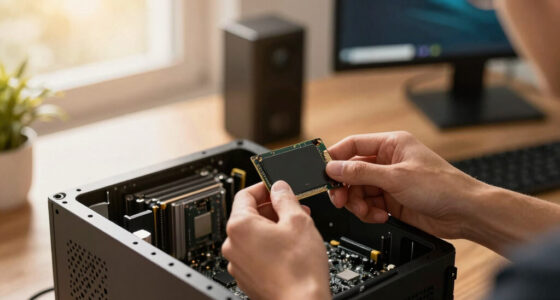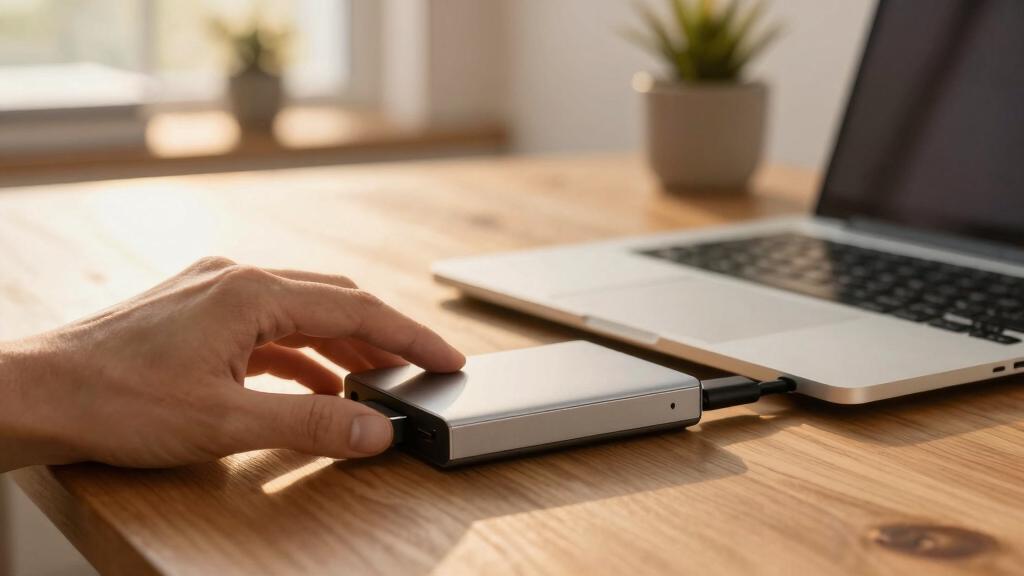
This guide explains how to connect, format, and use a portable external hard drive to store and back up data. It is suitable for users new to external drives or those needing a clear process for setup and use. Completing this task ensures your data is safely stored and easily accessible across devices.

Seagate Portable 2TB External Hard Drive HDD
- ✔ Storage Capacity: 2TB
- ✔ Connectivity: USB 3.0
- ✔ Compatibility: PC, Mac, PlayStation, Xbox
Seagate Portable 1TB External Hard Drive HDD – USB 3.0 for PC, Mac, PlayStation, & Xbox
- ✔ Storage Capacity: 1TB
- ✔ Interface: USB 3.0
- ✔ Compatibility: PC, Mac, PlayStation, Xbox

Western Digital 5TB Elements Portable External Hard Drive
- ✔ Capacity: 5TB
- ✔ Interface: USB 3.2 Gen 1 / USB 3.0
- ✔ Compatibility: Windows, Mac
Difficulty: Beginner | Time: 15-30 minutes
What You’ll Need
Tools & Materials:
- Portable external hard drive
- Computer with USB port
- USB cable (usually included)
- Optional: backup software
Knowledge:
- Basic computer operation
- Understanding of file transfer and storage
Ensure your external hard drive is compatible with your computer’s operating system (Windows, macOS, or Linux). Have sufficient free space on your computer to download any necessary software or drivers.

Seagate Portable 2TB External Hard Drive HDD — USB 3.0 for PC, Mac, PlayStation, & Xbox -1-Year Rescue Service (STGX2000400)
Easily store and access 2TB to content on the go with the Seagate Portable Drive, a USB external...
As an affiliate, we earn on qualifying purchases.
Seagate Portable 2TB External Hard Drive HDD
The Seagate Portable 2TB is our top pick for users who need a reliable, plug-and-play external drive that works seamlessly with Windows, Mac, and gaming consoles. Its 2TB capacity makes it suitable for large media collections and backups, and the USB 3.0 interface ensures quick data transfer. Compared to smaller drives, it offers significantly more storage, but this also means a larger size and slightly higher cost. While it lacks backup software, its broad compatibility and straightforward setup make it ideal for most users.
Pros:
- Large 2TB capacity
- Plug-and-play setup
- Compatible with PC, Mac, gaming consoles
Cons:
- No included backup software
- Slightly bulkier than smaller drives
- Storage capacity may vary slightly
Best for: Users needing large storage for backups, media, or gaming
Not ideal for: Those seeking a compact, lightweight drive or integrated backup features
Bottom line: This drive offers the best balance of capacity and compatibility for everyday use.
“This drive offers the best balance of capacity and compatibility for everyday use.”
Seagate Portable 1TB External Hard Drive HDD – USB 3.0 for PC, Mac, PlayStation, & Xbox, 1-Year Rescue Service (STGX1000400) , Black
Easily store and access 1TB to content on the go with the Seagate Portable Drive, a USB external...
As an affiliate, we earn on qualifying purchases.
Seagate Portable 1TB External Hard Drive HDD – USB 3.0 for PC, Mac, PlayStation, & Xbox
The Seagate 1TB Portable Hard Drive offers a compact and lightweight solution for users who prioritize portability and affordability. Its 1TB storage is suitable for casual backups, document storage, or on-the-go media. The USB 3.0 interface ensures decent transfer speeds, but reformatting may be necessary for Mac users. While it’s easy to set up and compatible with multiple devices, it doesn’t include backup software, which could be a downside for those looking for automated backups.
Pros:
- Lightweight and portable
- Affordable price
- Compatible with multiple devices
Cons:
- May require reformatting for Mac
- Limited 1TB capacity
- No backup software included
Best for: Travelers and casual users needing portable storage at a lower price point
Not ideal for: Power users or those with large media libraries requiring more capacity
Bottom line: An excellent budget option for basic portable storage needs, with some reformatting required for Mac users.
“An excellent budget option for basic portable storage needs, with some reformatting required for Mac users.”
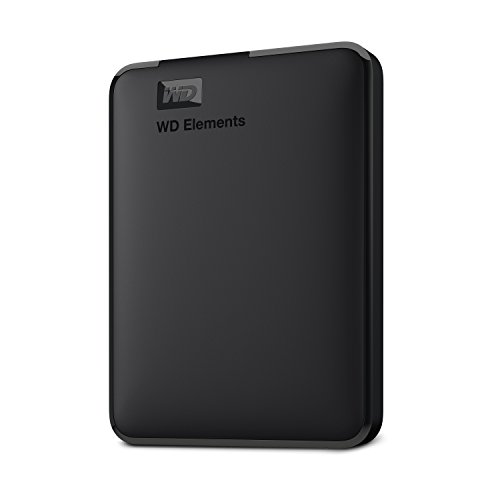
Western Digital WD 5TB Elements Portable External Hard Drive for Windows, USB 3.2 Gen 1/USB 3.0 for PC & Mac, Plug and Play Ready - WDBU6Y0050BBK-WESN
Plug-and-play expandability
As an affiliate, we earn on qualifying purchases.
Western Digital 5TB Elements Portable External Hard Drive
The Western Digital 5TB Elements stands out for those requiring extensive storage on the go. Its 5TB capacity makes it ideal for large backups, media libraries, or extensive project files. The USB 3.2 Gen 1 interface delivers fast data transfer speeds, making it suitable for quick backups and file transfers. However, it requires a USB port for power, which might be limiting for ultra-portable scenarios, and it lacks backup software, so users must handle their backups manually.
Pros:
- Massive 5TB storage
- Fast USB 3.2 transfer speeds
- Compatible with Windows and Mac
Cons:
- Requires USB port for power
- No backup software included
- Larger size compared to smaller drives
Best for: Power users needing high capacity and speed for large files
Not ideal for: Ultra-lightweight travelers or users without available USB ports for power
Bottom line: This drive is perfect for users who prioritize high capacity and speed over ultra-portability.
“This drive is perfect for users who prioritize high capacity and speed over ultra-portability.”
As an Amazon Associate we earn from qualifying purchases.
Before You Start
Check that your external hard drive is new or properly reset. Avoid connecting the drive to a damaged or malfunctioning USB port. Backup any important data before formatting if needed, as formatting will erase all existing data on the drive.
Step-by-Step Instructions
Step 1: Connect the external hard drive to your computer
Plug the included USB cable into your external hard drive and connect it to an available USB port on your computer. Use a port directly on your computer rather than a hub for stability.
Tip:If the drive does not power on or is not recognized, try a different USB port or replace the cable.
Check: The drive appears as a new drive letter or icon in your file explorer (Windows) or Finder (macOS).
Step 2: Initialize and format the drive if necessary
Open your computer’s disk management tool (Disk Utility on Mac, Disk Management on Windows). Locate the external drive, right-click, and select ‘Format’ or ‘Erase.’ Choose a file system compatible with your needs (NTFS for Windows, APFS or Mac OS Extended for Mac, exFAT for cross-platform sharing). Proceed with formatting.
Tip:Formatting will erase existing data. Confirm you have backed up important files before proceeding.
Check: The drive appears as a formatted volume with a recognizable label and file system in your file explorer.
Step 3: Configure backup or data transfer settings
Decide how you want to use the drive: manually transfer files by copying and pasting, or set up backup software. If using backup software, install and configure it following the software’s instructions to include the external drive as a backup destination.
Tip:For scheduled backups, verify the software’s settings to run automatically at desired intervals.
Check: You can successfully copy files to and from the drive, or the backup software runs without errors.
Step 4: Safely eject the drive after use
Before disconnecting, use your operating system’s eject or safely remove hardware feature to disconnect the drive. On Windows, right-click the drive in File Explorer and select ‘Eject.’ On Mac, drag the drive icon to Trash or click ‘Eject.’
Tip:Always eject the drive before unplugging to prevent data corruption.
Check: The drive disappears from your file explorer and no longer shows activity lights, indicating safe removal.
Common Mistakes to Avoid
- Disconnecting the drive without ejecting. — Always eject the drive through your operating system before unplugging to avoid data corruption.
- Using an incompatible file system. — Format the drive with a file system compatible with your devices and intended use (exFAT for cross-platform, NTFS for Windows-only, APFS or Mac OS Extended for Mac).
- Not backing up important data before formatting. — Save or transfer all important files elsewhere before formatting or reformatting the drive.
Troubleshooting
Problem: Drive not recognized by the computer.
Solution: Try connecting to a different USB port, replace the USB cable, or restart your computer. If still unrecognized, check device manager or disk utility for errors.
Problem: Drive shows as unallocated or unformatted.
Solution: Use disk management tools to format the drive correctly. Confirm the file system is compatible with your device.
Problem: File transfer is slow or fails.
Solution: Ensure your USB port supports high-speed transfer (USB 3.0 or later). Avoid using hubs or extension cables that may reduce speed.
What Success Looks Like
The external drive is correctly connected, formatted, and accessible. You can copy files to and from it without errors, and backups run successfully if set up.
Next Steps
Regularly back up important files to the drive. Disconnect and store the drive in a safe place when not in use. Periodically check the drive’s health and reformat if performance declines.
Frequently Asked Questions
Can I use the external hard drive on multiple computers?
Yes, if formatted with a compatible file system like exFAT, you can connect the drive to different computers and transfer files seamlessly.
How do I prevent data loss on my external drive?
Use reliable backup software, eject the drive properly, and avoid disconnecting during data transfer. Keep multiple copies of important data.
Is it safe to leave the drive plugged in all the time?
Yes, if the drive is designed for continuous use. However, periodically eject and disconnect to prevent wear and ensure data safety.
What should I do if my drive is making strange noises?
Stop using the drive immediately, back up any accessible data, and consider testing it with disk utility tools. If noises persist, the drive may be failing.